Publish Email Workflows
PIM for Outlook supports several common publishing flows: creating a new message, publishing existing messages, replying or forwarding, and searching for published content.
Use the workflow that matches your email state
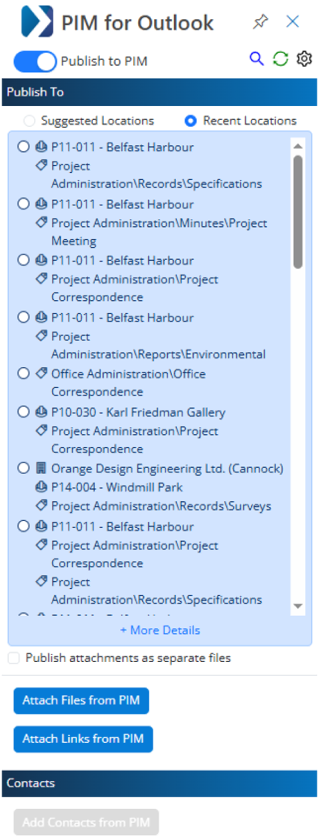
- Create and publish
- Publish existing emails
- Reply or forward
- Search published emails
- Compose a new email in Outlook.
- Open the PIM for Outlook panel if it is not already pinned.
Select a publish location from Suggested Locations, Recent Locations, or More Details.
- Add files, links, or contacts from PIM if needed.
- Choose whether attachments should be published separately.
- Click Send to send the email and publish it to PIM.
Optional: when to use each location option
Suggested Locations uses the subject line and thread history to recommend likely targets.
Recent Locations is fastest when the user is repeatedly filing to the same places.
More Details opens the Location Picker when users need to search or override the quick choices.
- Select one or more emails in Outlook.
- Click PIM for Outlook > Publish to PIM.
- Review the selected messages in the side panel.
- Choose a publish location.
Decide whether attachments stay with the email or publish separately.
- Complete publishing.
If the selected emails reference more than one entity, the add-in can prompt the user to publish to multiple locations or override the recommendation.
- Open the message and click Reply or Forward.
- Launch the PIM for Outlook panel.
- Select a publish location.
- Add contacts from PIM if appropriate.
- Choose attachment handling.
- Send the message to publish it.
Optional: add contacts from PIM
Users can bring PIM contacts into the email as TO, CC, or BCC recipients without leaving the publish flow.
In the PIM for Outlook side panel, click Search DMS.
- A browser tab opens to the DMS search page.
- Use filters and quick links to narrow the results by entity or context.
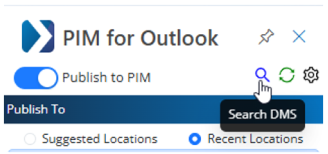
The search action opens the DMS experience rather than keeping the user in the compose pane.
Common publish decisions
Choose a location
Users can stay fast with suggested or recent locations, or open the location picker when they need more control over where content is filed.
Handle attachments
Attachments can remain bundled with the email or be published separately, depending on the workflow and the desired document structure in PIM.
The original guide repeated similar publish steps several times. Breaking the tasks into tabs makes the common path easier to understand while still keeping the workflow variants available.