Preparing Users for ComputerEase Field
Deltek is thrilled to announce the release of our latest field-to-office communication product, ComputerEase Field.
This innovative mobile app combines Time and Expense capabilities, replacing the ExpenseEase app. While ComputerEase Field features a refreshed look and feel, rest assured that all the familiar and user-friendly expense tracking capabilities remain unchanged. In this document, we have compiled all the essential information that ExpenseEase users need to prepare for this transition.
New Application Name
The new ComputerEase Field app will replace the ExpenseEase app.
| ExpenseEase | ComputerEase Field |
|---|---|
 |  |
After ComputerEase Field is released, the user experience for each user will fall into one of three scenarios based on their device App Store Auto-update settings:
- Over any network: "Automatically update apps over any network"
ExpenseEase will be automatically updated to ComputerEase Field within 24 hours of the app being released without the user taking any action. The users will notice the new CE Field icon has replaced the EE icon in the same shortcut location. - Over Wi-Fi only (default): "Automatically update apps over Wi-Fi only"
ExpenseEase will be updated to ComputerEase Field without the user taking any action only when connected to a Wi-Fi network. As this can take several days, Deltek recommends that you encourage your users to update the app by going to their App Store, search for ComputerEase Field, and tap the Update button. Users will then see the new CE Field icon has replaced ExpenseEase in the same shortcut location. - Don't auto-update apps: If the device is set not to auto-update apps, ExpenseEase will not be automatically updated to ComputerEase Field. Users will need to manually update the app by navigating to their App Store, searching for ComputerEase Field, and tapping the Update button. Users will then see the new CE Field icon has replaced ExpenseEase in the same shortcut location.
Note: Users can check their settings by using one of these links:
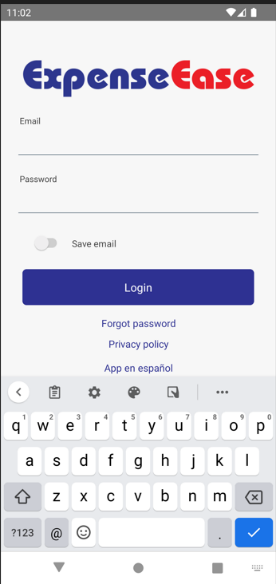
New Login Flow
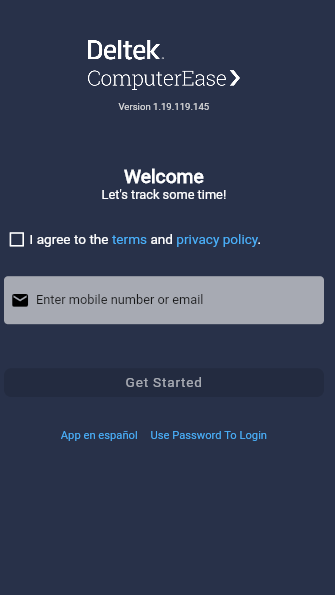
With passwordless user authorization, users will no longer need to register and create a password for the app.
Note: With this change in authentication, user registration is no longer needed. Existing users will be converted from Payees to Field App Users during the upgrade so that users will not see a disruption in use.
- After installing the ComputerEase Field app, users will simply enter either their email address or mobile number.
- Depending on which was entered at login, users will receive a one-time verification code in their email or in a SMS text to their mobile number.
- If a user has changed their email address, first name, and/or last name, the desktop User information will reflect the email address, first name, and/or last name that was on the original invitation. This is not a cause for concern and app usage will not be interrupted.
Biometric Login Options
After entering the initial authentication code, the user will have the option to use fingerprint, passcode, or Face ID for authentication on that device to access the app.
If fingerprint, passcode, or Face ID is set up and used for authentication, the user will access the mobile app from that point forward on that device to quickly log in and out.
Enhanced Receipt Capture
Capturing a receipt has been enhanced with Intelligent Character Recognition (ICR) technology. When a user takes a picture of a receipt, the app scans the text and populates the date, merchant, amount, and expense type fields, attaching the receipt image to the entry. Changes can then be made to any of the auto-populated fields, the payment method, and description.
If an expense is entered manually and then a receipt is captured, the app will perform an ICR comparison and prompt the user if values conflict. The user can opt to update with what was read in from the ICR process.
Quick Capture
Quick Capture introduces a new streamlined process for creating an expense.
Users can quickly create an expense record by taking a picture of the receipt, and the ICR will populate key fields. The user can then add the job allocation, payment method, and any description to complete the process.
GPS Functionality
If Expense is configured and enabled, it will suggest jobs in close proximity to the user during expense capture, thus facilitating easier job selection for expense allocation.
Users can select a different job and opt not to use the nearby jobs if they prefer.
Snapshots of Changes to Expect
Icon
| ExpenseEase | ComputerEase Field |
|---|---|
| |
Login
| ExpenseEase | ComputerEase Field |
|---|---|
 |  |
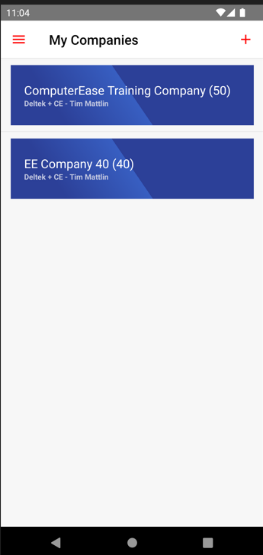
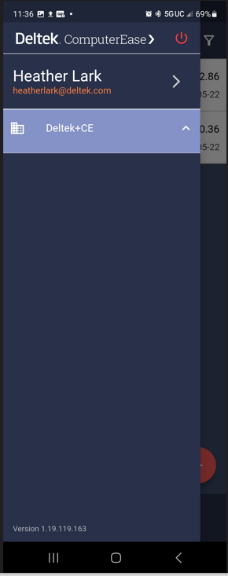
Change/Select Company
| ExpenseEase | ComputerEase Field |
|---|---|
 |  |
Enter Expense
| ExpenseEase | ComputerEase Field |
|---|---|
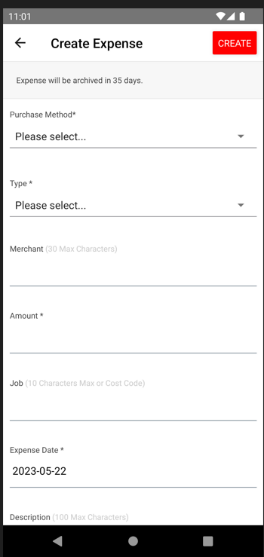 | 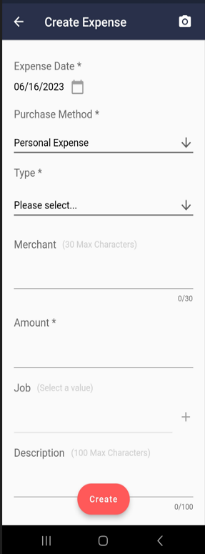 |
Capture Receipt
| ExpenseEase | ComputerEase Field |
|---|---|
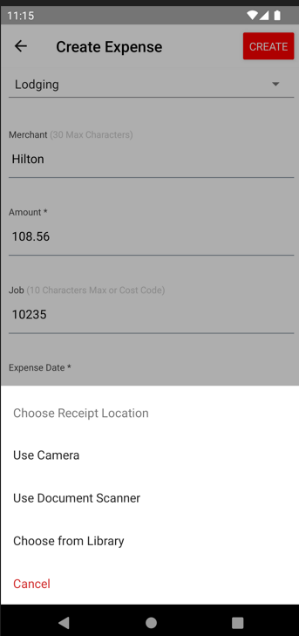 | 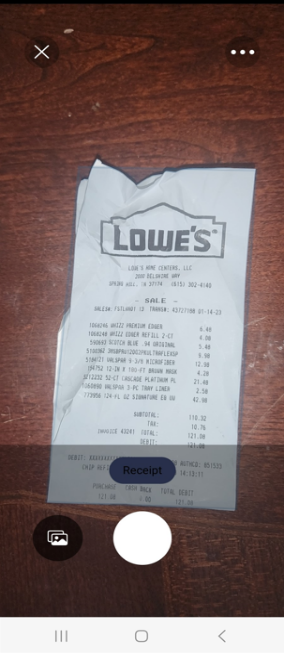 |
View Expenses
| ExpenseEase | ComputerEase Field |
|---|---|
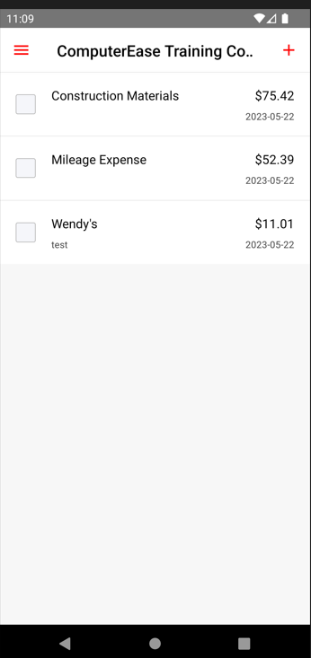 | 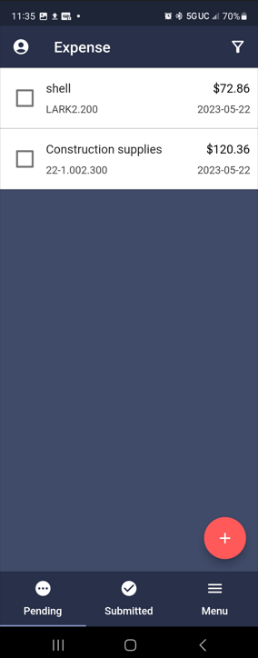 |
Sort Expenses
| ExpenseEase | ComputerEase Field |
|---|---|
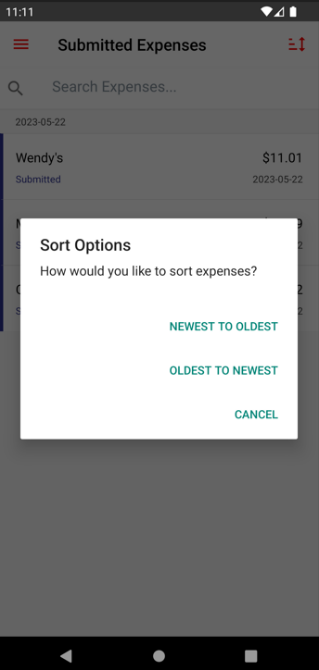 | 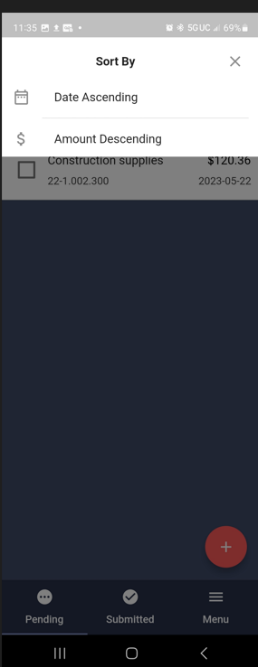 |
Submit Expenses
| ExpenseEase | ComputerEase Field |
|---|---|
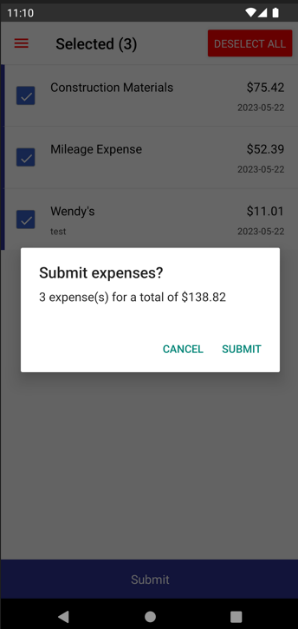 | 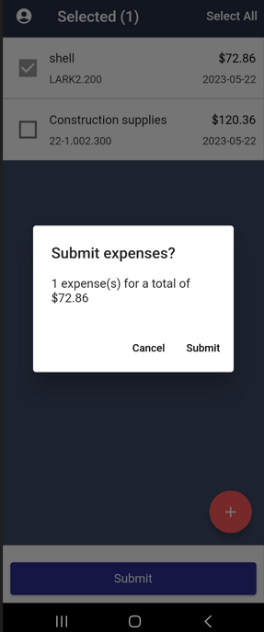 |
Intelligent Character Recognition Capture (ICR)
| ExpenseEase | ComputerEase Field |
|---|---|
| N/A | 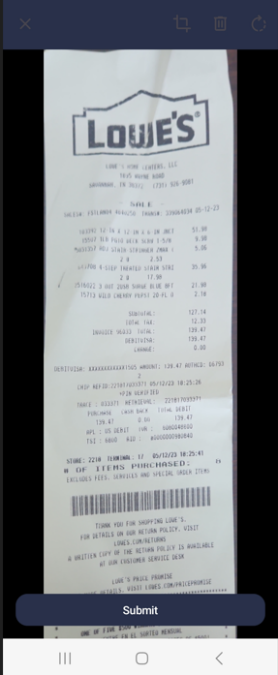 |
Attention: For more information on the new functionality available in ComputerEase Field, click this link.